
New
QR-based complaint handling—easy & fast

HADA lets you set each checklist so that no checks are assigned on company holidays or public holidays.
If checks are still assigned on holidays, days without an inspection may be counted as incomplete and trigger related notifications.
If your facility is closed on holidays, be sure to review this setting.
✔️ This setting is not selected by default, and you can choose only the holiday types you need for each checklist.
💡 To exclude holidays, your holiday list must be set up first. To learn how to add holidays, see 'Managing Holidays'
On the checklist registration or edit screen, find Exclude checks on holidays right below the task cycle settings.
✔️ Clicking the Holiday management link opens [Settings > Holiday management] in a new tab, so you can check your registered holidays right away.
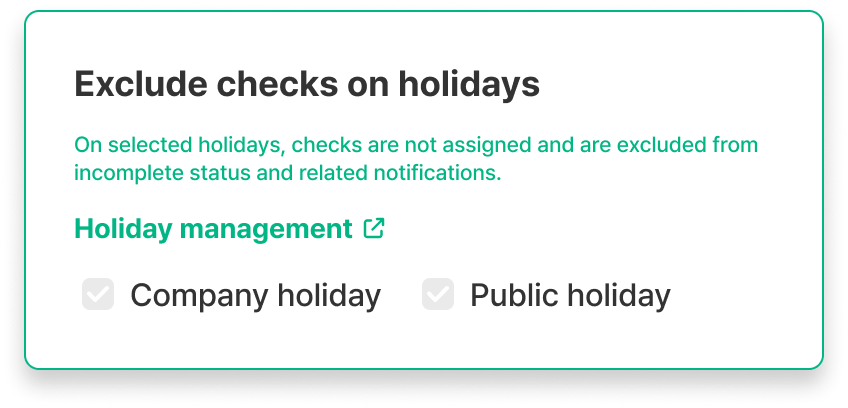
Select the holiday types to exclude. You can select both, or only the one you need.
✔️ Company holiday: No checks are assigned on days registered as company holidays.
✔️ Public holiday: No checks are assigned on national public holidays.
💡 Excluded dates are also left out of incomplete counts and related notifications.
💡 Once you save the setting, the same rules apply to subsequent assignments, status, statistics, and the inspector's screen.
Holidays are marked separately in the schedule calendar and on the status and statistics screens.
✔️ For checklists with holidays excluded, those dates are counted as having no checks assigned.


