
New
QR-based complaint handling—easy & fast

You can edit a registered facility's name, checklists, and inspection start date, or delete the facility.
Editing checklists or the inspection start date, or deleting a facility, can affect past inspection records, so please proceed with care.
✔️ If you just won't be inspecting a facility for a while but want to keep its information and history, pause it instead of deleting it. See Pausing/Resuming Facilities.
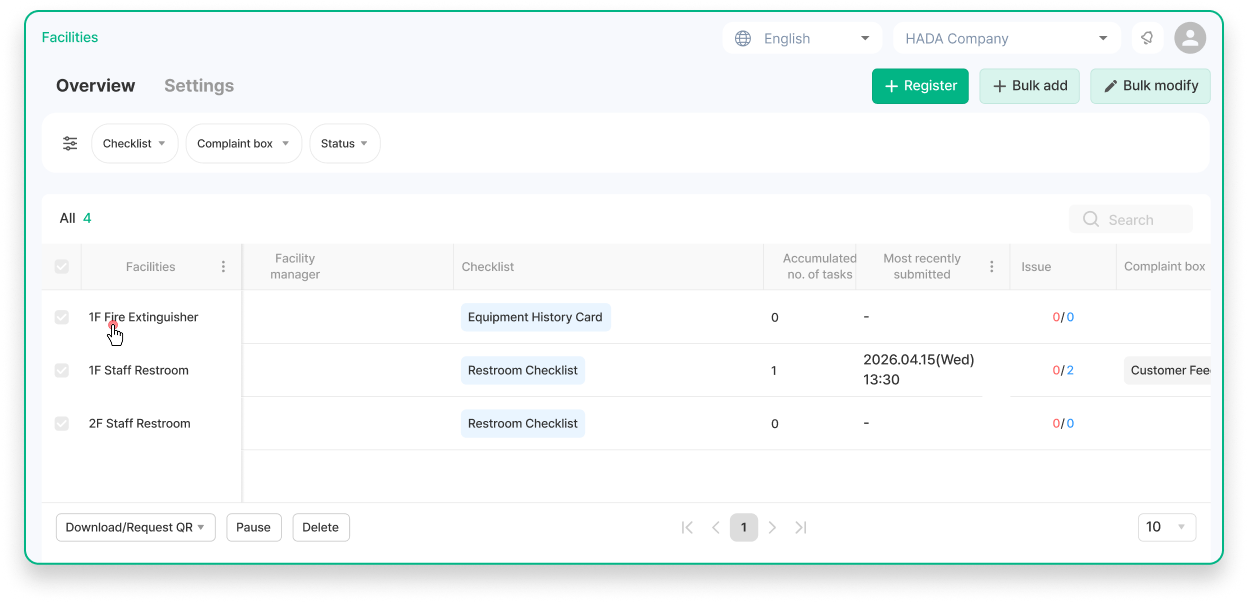
From the left menu, go to Facilities > Overview and click the facility you want to edit. Its details page opens.
💡 Paused facilities can't be edited. Resume the facility first, then make your changes.
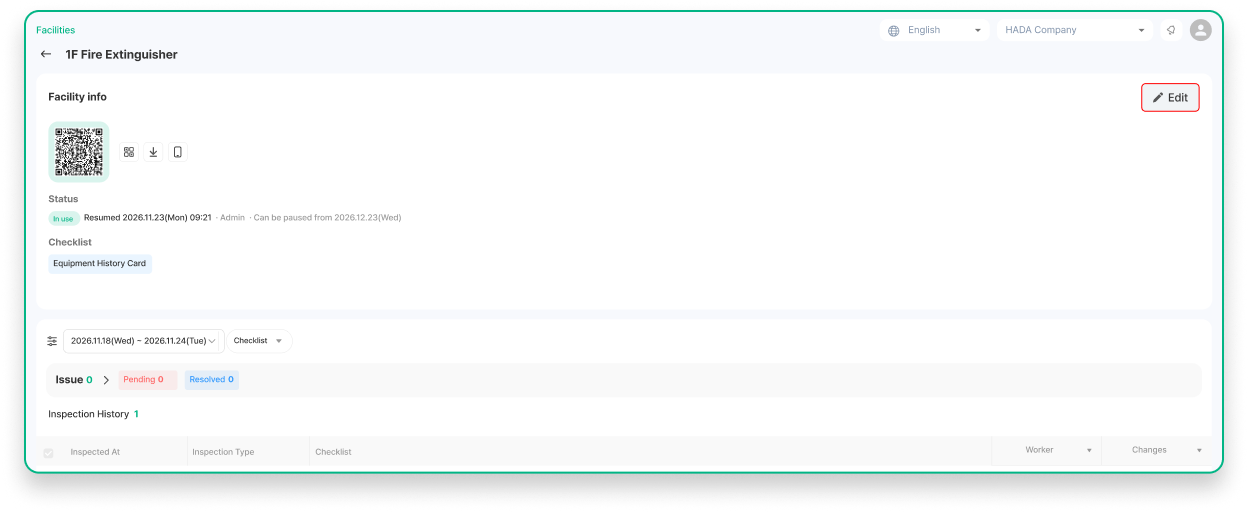
On the facility details page, click the 'Edit' button to open the edit page.
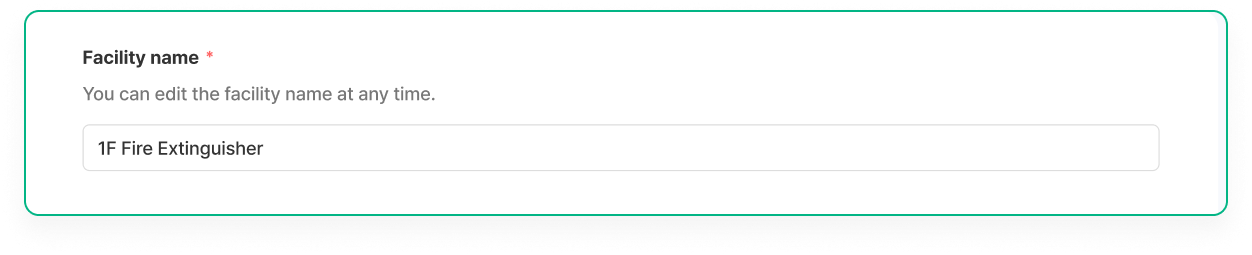
You can change the facility name.
✔️ Facility names can be up to 50 characters long.
Click the 'Select checklist' button to add a checklist, or click the trash icon to remove a linked checklist.
💡 Removing a linked checklist doesn't delete its existing inspection records. However, those records will no longer appear in this facility's inspection status, schedules, or statistics. They'll appear again if you link the checklist again.
💡 If any inspections have approvals in progress, you'll see how many approvals will be canceled when you save, and those approvals will be canceled. Records of completed or rejected approvals are kept.
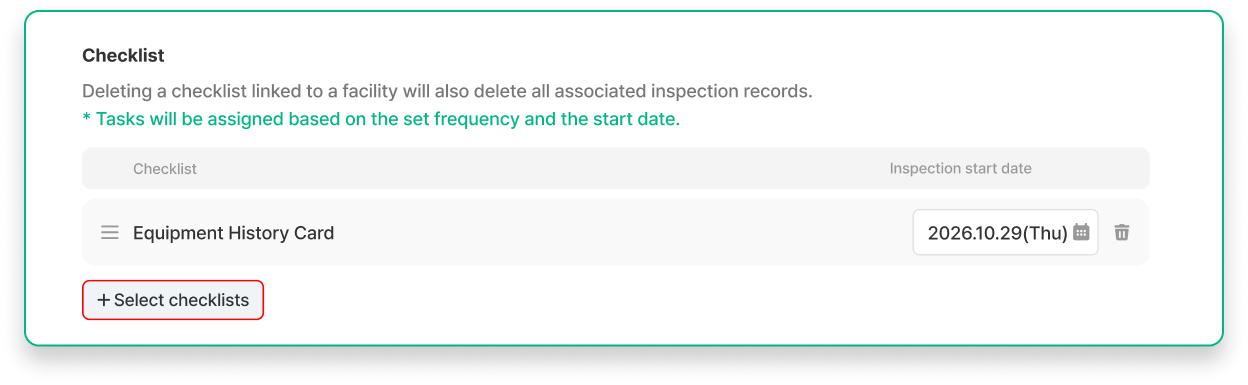
Click the date area next to a checklist to change its inspection start date.
💡 Changing the inspection start date may change the completed/incomplete status of inspections on earlier dates.
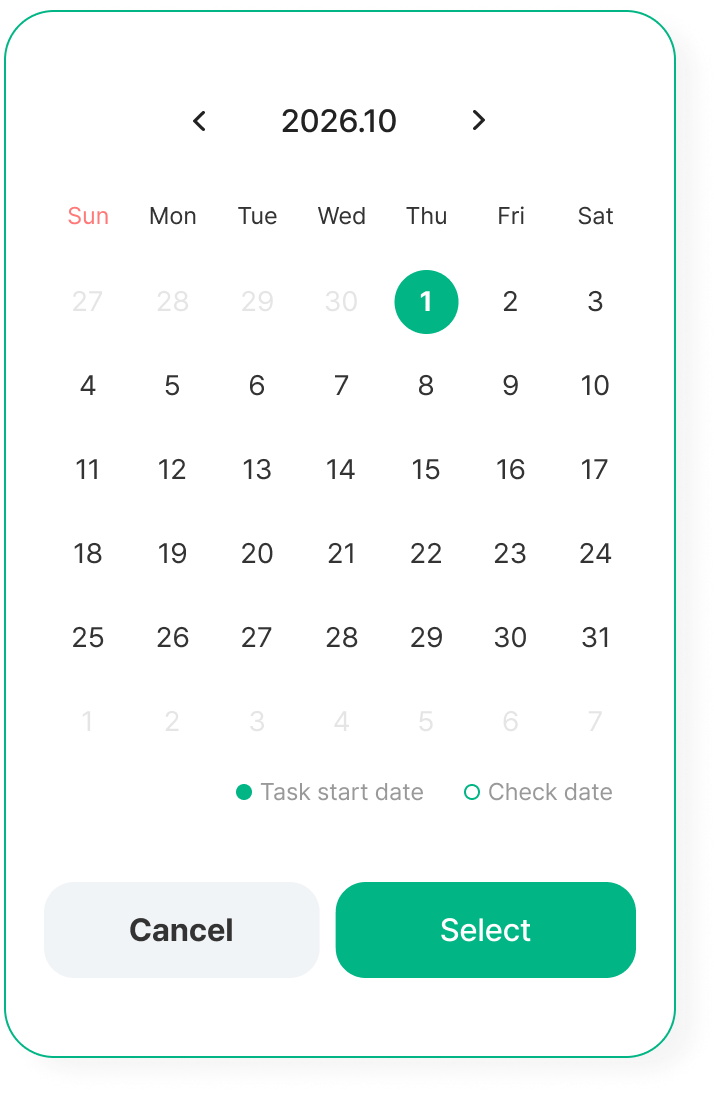
After making your changes, click the 'Save' button in the top-right corner.
A confirmation window asks 'Save changes to this facility?'. Review your changes, then confirm.
💡 Editing checklists may change inspection results for earlier dates or make some inspection records unavailable.
Your changes to the facility are saved.
✔️ The existing QR code keeps working after you edit a facility. There's no need to reprint it.
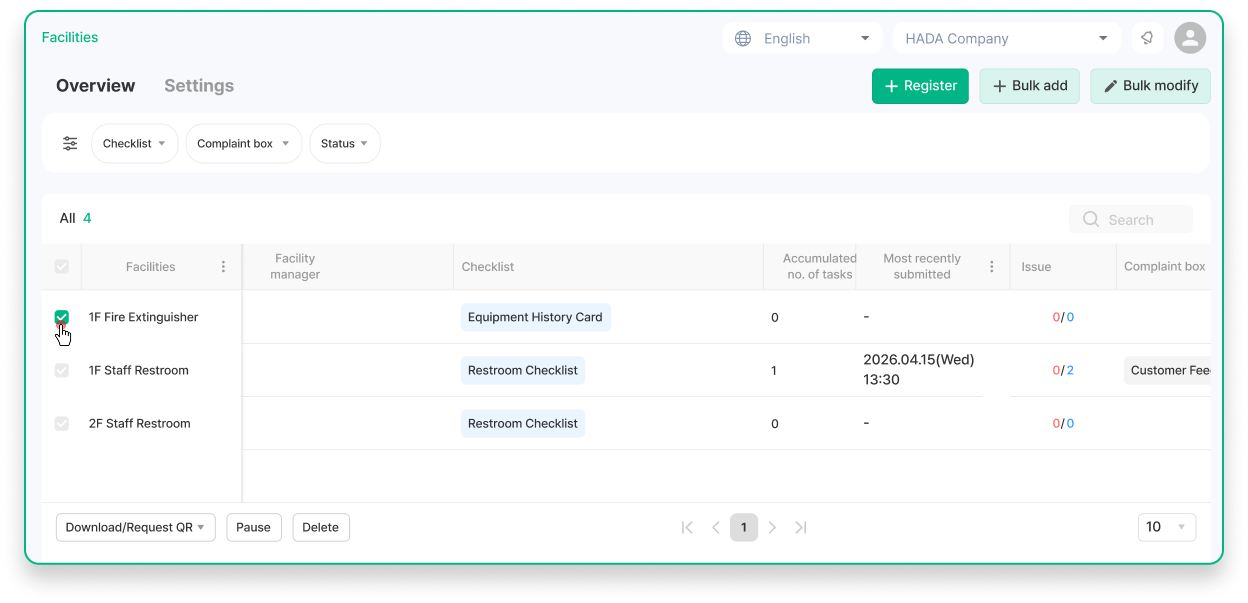
From the left menu, go to Facilities > Overview and select the checkbox to the left of each facility you want to delete.
✔️ You can select and delete multiple facilities at once.
✔️ Paused facilities can also be deleted directly, without resuming them first.
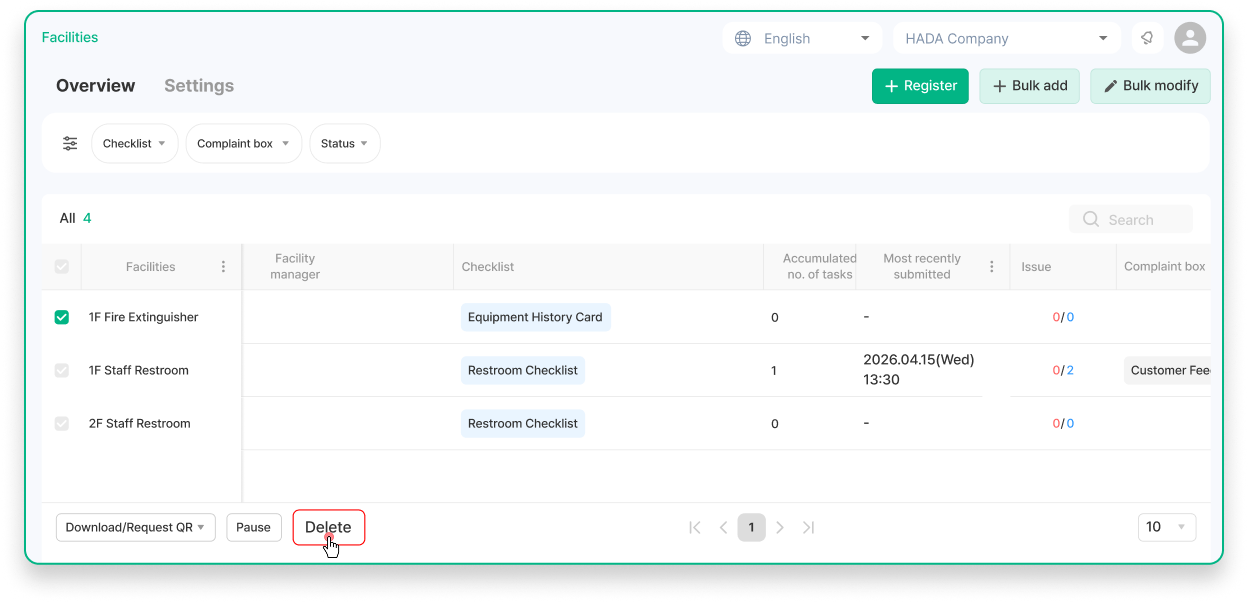
Click the 'Delete' button at the bottom of the screen.
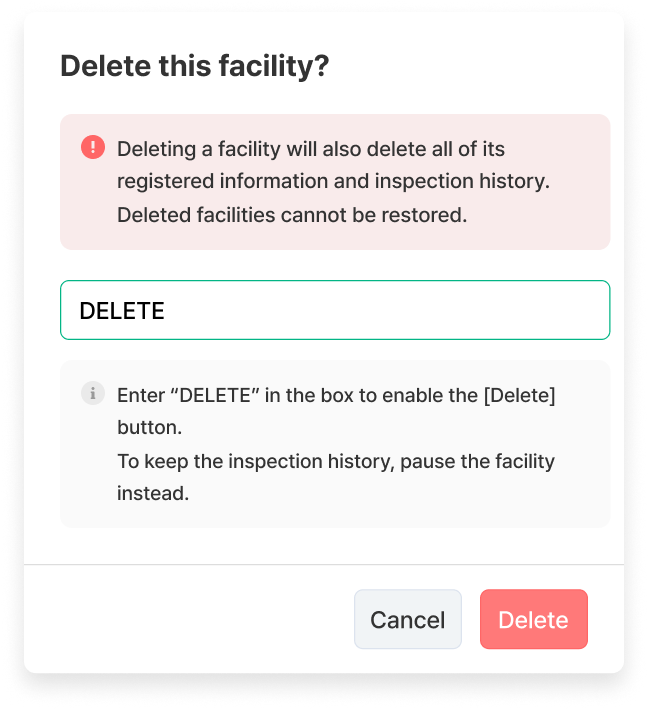
When the 'Delete this facility?' confirmation window opens, check the facilities to be deleted, type 'DELETE', and proceed with the deletion.
💡 Deleting a facility permanently removes all of its information and inspection history, and deleted facilities can't be restored.
If you register the same facility again, its previous QR code won't work.
The selected facilities are removed from the list.
✔️ Deleted facilities aren't included in your charges from the day they're deleted.


