
New
QR-based complaint handling—easy & fast

If a facility won't be inspected for a while because of construction, a temporary closure, or seasonal operation, you can pause it instead of deleting it.
Pausing keeps the facility's information and inspection history, so you can pick up inspections right where you left off when you resume it.
While a facility is paused, the following features are unavailable until you resume it.
✔️ Paused facilities aren't included in your charges from the day they're paused until they're resumed.
💡 Each facility can be paused only once every 30 days. Even if you resume a facility right after pausing it, you cannot pause it again until 30 days have passed, so please check before you proceed. For details, see 4. Pause limit.
From the left menu, go to Facilities > Overview and select the checkbox next to each facility you want to pause, then click the 'Pause' button at the bottom of the screen.

✔️ You can select and pause multiple facilities at once.
In the 'Pause this facility?' confirmation window, review the facilities to be paused and the features that will become unavailable, then click 'Pause'.

💡 If there are approvals in progress or scheduled on-demand inspections, the confirmation window also shows how many. Pausing cancels any approvals in progress and unassigns scheduled on-demand inspections, so please check before you continue.
You'll see the message 'Status has been changed.', and a Paused label appears next to the facility name. Paused facilities are grayed out in the list.

Use the 'Status' filter at the top of the Facilities > Overview page to show All, Active, or Paused facilities.

In the 'Status' section of the facility details page, you can see when the status was last changed and which admin changed it.

✔️ The 'Edit' button is disabled for paused facilities.
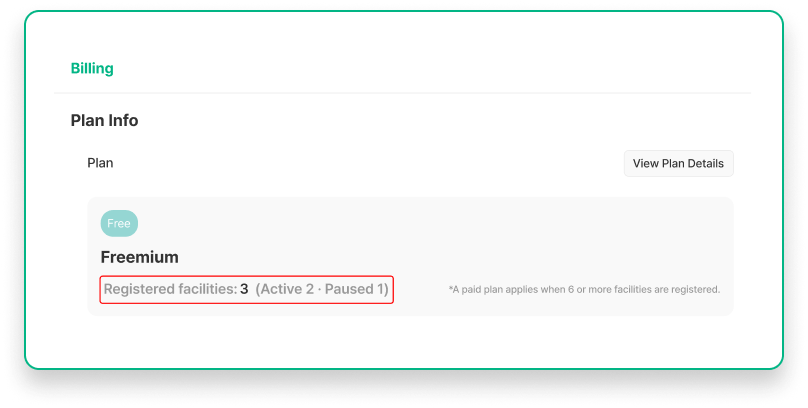
Under Settings > Billing, the plan information shows the number of registered facilities, along with how many are active and how many are paused.
When you select paused facilities, the button at the bottom of the screen changes to 'Resume'. Click 'Resume'.
💡 If you select both active and paused facilities, the button is disabled. Select only facilities with the same status.

In the 'Resume this facility?' confirmation window, click 'Resume'.

✔️ Inspection schedules, notifications, and charges apply again from the day you resume the facility.
The 'Status' section of the facility details shows when the facility was resumed and the date it can next be paused.
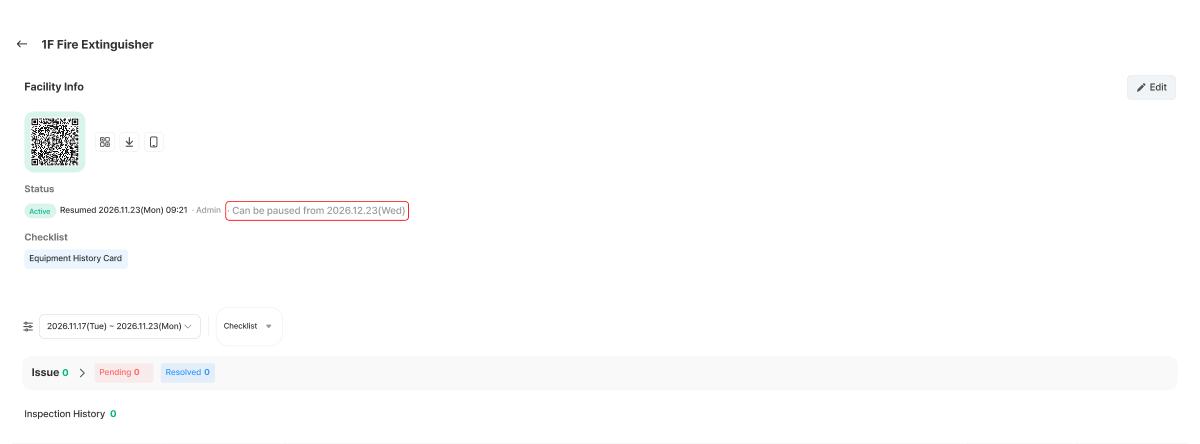
Each facility can be paused only once every 30 days. You can pause it again once 30 days have passed since it was last paused. There's no limit on resuming.
For example, if you pause a facility on November 1 and resume it on November 2, you cannot pause it again until 30 days have passed since November 1. This also applies if you paused it by mistake, so be sure to check which facilities you are pausing before you proceed.
If your selection includes a facility that was paused less than 30 days ago, that facility is excluded and you'll see the date it can be paused again.

💡 If none of the selected facilities have reached the 30-day mark, the 'Pause' button is disabled.
When a worker scans the QR code of a paused facility, a notice screen appears instead of the inspection screen.

✔️ Once you resume the facility, workers can inspect it right away with the same QR code. There's no need to reprint it.
💡 If you no longer need a facility or its information and history, you can delete it. See Editing/Deleting Facilities. Deleted facilities can't be restored, and if you register the same facility again, its previous QR code won't work.


